Download Mobile Apps
To get the full experience and manage your business on the go, download our mobile applications:
Android Applications
Scan QR code or click to download
Vendor App
Manage your business, bookings, and products on the go

Scan with your phone camera
Download APK Vendor AppDriver App
For drivers to receive and manage car requests

Scan with your phone camera
Download APK Driver AppGetting Started
- 📋 You see
- The login screen, then your business dashboard.
- 🛠 You can
- Sign in with your registered email and password, or reset your password if you forgot it.
- ⏰ When to come
- Every time you open the dashboard for the first time today.
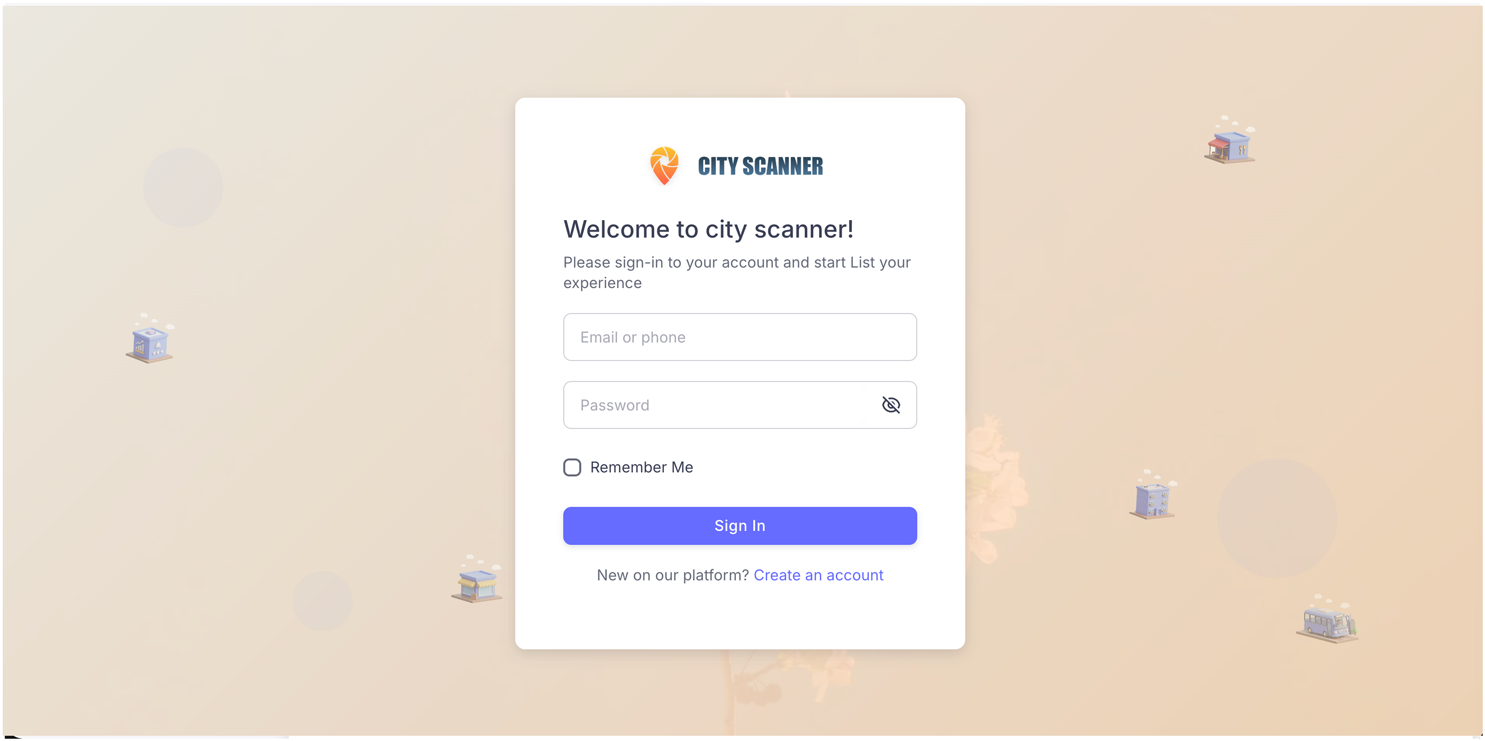
Login to Vendor Dashboard
Access your vendor dashboard to manage your business, bookings, and products.
 1
2
3
4
5
1
2
3
4
5
- Email / Username — enter the email address you registered with.
- Password — case-sensitive, minimum 8 characters.
- Remember Me — stays logged in on this browser. Don't tick on a shared computer.
- Forgot Password? — sends a reset code to your email.
- Sign in — the orange button below the form.
-
Access the Dashboard
Navigate to:https://core.cityscanner.io/Dashboard-Vendoror click the "Go to Dashboard" button above. -
Enter Your Credentials
Enter your registered email/username and password. Check "Remember Me" to stay logged in. -
Click "Sign in"
After successful login, you'll be redirected to your main dashboard.
Forgot Password?
Click the "Forgot Password?" link on the login page or visit Reset Password. Enter your email to receive a verification code and set a new password.
One password shared across staff means you can't tell who changed what, and you can't revoke access for a single person. Ask support to issue separate vendor sub-accounts for each employee instead.
Are You a Limousine Vendor?
Important: Different Dashboard for Limousine Vendors
If you are a Limousine/Car Rental vendor, your dashboard has significant differences from other vendors. Please identify your vendor type below.
How to Identify Your Vendor Type
Check your sidebar menu after logging in:
Limousine Vendor 🚗
If you see these menu items:
- ✅ Driver - Manage your drivers
- ✅ Request Car - Real-time requests
- ❌ No "Booking" page
- ❌ No "Orders" page
- ❌ No "User Visits" page
Regular Vendor 📦
If you see these menu items:
- ✅ Booking - Accept/reject bookings
- ✅ Orders - Confirmed orders
- ✅ User Visits - Profile analytics
- ❌ No "Driver" page
- ❌ No "Request Car" page
Feature Comparison
| Feature | Regular Vendors 📦 | Limousine Vendors 🚗 |
|---|---|---|
| Booking Page | ✅ Advance bookings | ❌ Uses "Request Car" |
| Orders Page | ✅ Confirmed orders | ❌ Track in "Request Car" |
| Driver Management | ❌ Not available | ✅ Full driver system |
| Car Fleet | ❌ Not available | ✅ Multiple vehicles |
| Price per KM | ❌ Not available | ✅ Distance pricing |
| Request Timing | Flexible acceptance | 2-minute expiration |
Dashboard Overview
- 📋 You see
- Your business at a glance — total orders, products, customers, and what's waiting for action.
- 🛠 You can
- Tap any number to jump into the matching list. Use the sidebar to navigate elsewhere.
- ⏰ When to come
- Every time you log in — this is your "is anything new for me today?" home screen.
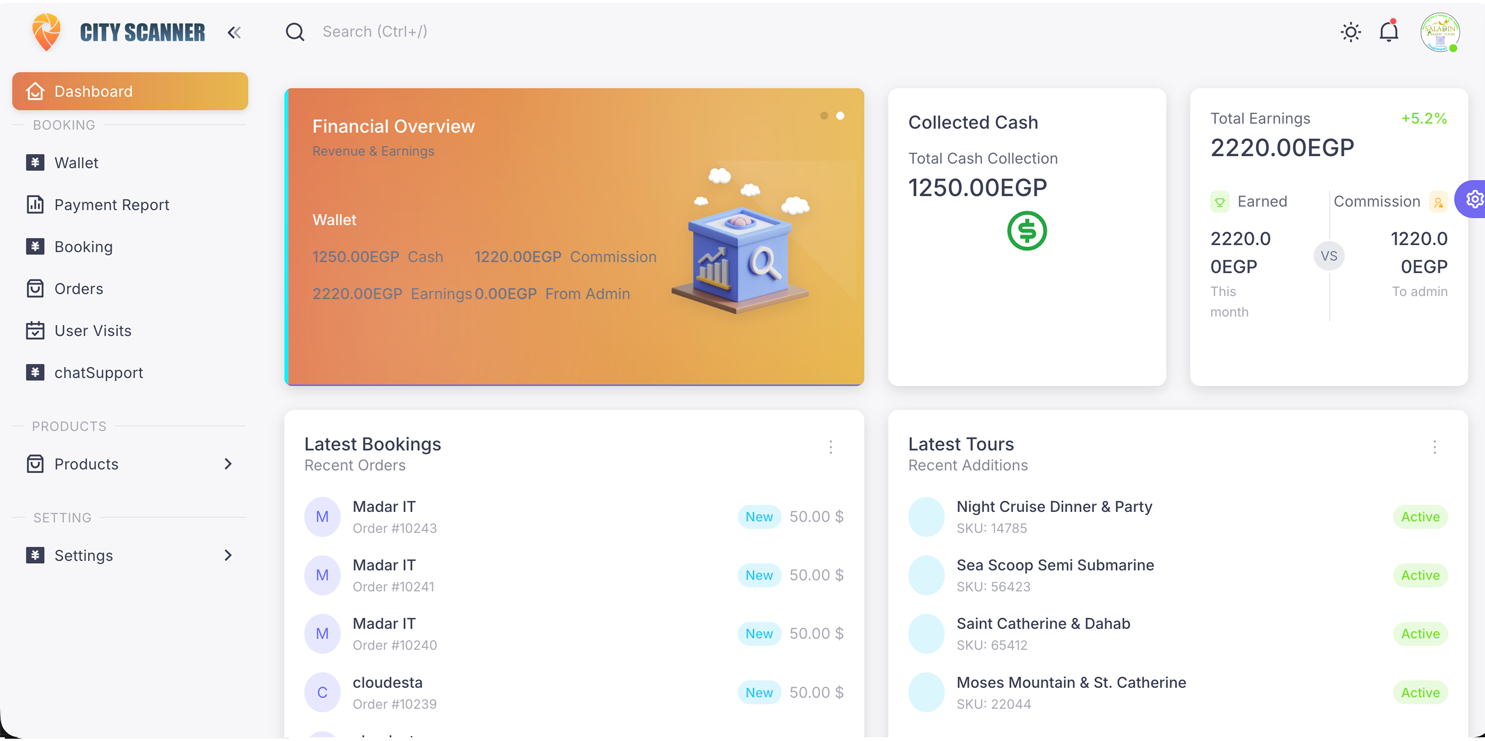
When you log in, you'll see your main dashboard with two interactive cards showing your business performance:
 1
2
3
4
1
2
3
4
- Business Analytics — orders, products, customers, pending count. Tap any number to drill in.
- Wallet — your earnings ready to withdraw, plus pending payouts.
- Sidebar navigation — every page lives here: Bookings, Products, Drivers, Settings.
- Profile menu — change password, log out, switch language.
Business Analytics Card
Blue gradient card showing:
- Vendor ID: Your unique identifier
- Orders: Total bookings received
- Products: Your listed items
- Customers: Unique customers
- Pending: Awaiting action
Financial Overview Card
Gold gradient card showing:
- Cash: Cash collected from customers
- Earnings: Your total earnings
- Commission: Platform fees deducted
- From Admin: Bonuses/credits
Swipe to Switch Cards
On the dashboard, you can swipe left/right to switch between the Analytics and Financial cards.
Booking Management 📦 Regular Vendors
- 📋 You see
- Every customer reservation for your products — newest first, with status, customer name, price and payment.
- 🛠 You can
- Accept new bookings, mark them completed, cancel, message the customer, or filter by status.
- ⏰ When to come
- Several times a day, especially when you get a "New Booking" notification.
Limousine Vendors
You do NOT have the "Booking" or "Orders" pages. Skip to the Car Request Management section instead.
Booking statuses at a glance
Viewing All Bookings
Navigation: Sidebar → Booking Section → Booking
Open Bookings page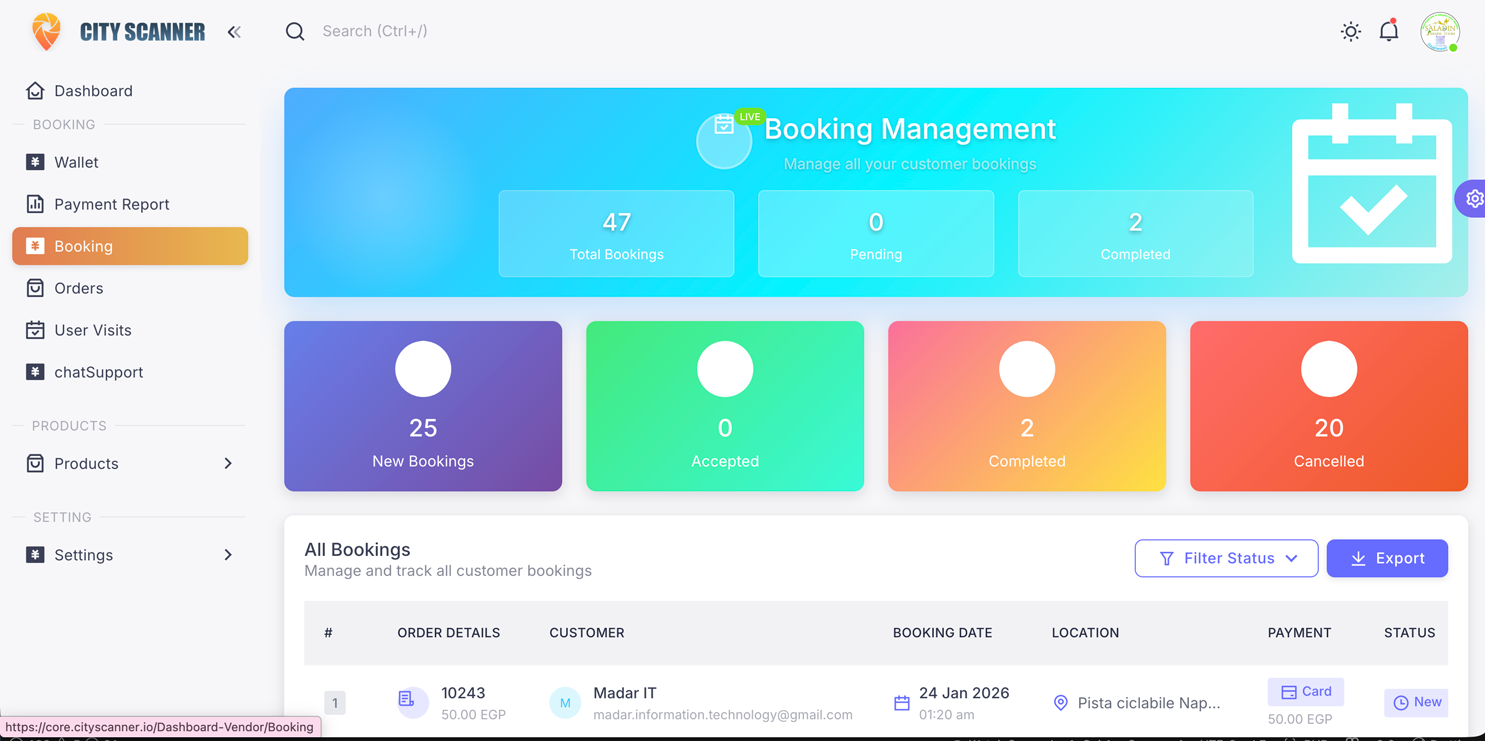 1
2
3
4
5
1
2
3
4
5
- Status filter — show only pending / accepted / completed bookings.
- Search box — find a booking by customer name or ID.
- Booking row — click anywhere on a row to open the details page.
- Status badge — colored pill showing where the booking is in the flow.
- Pagination — older bookings live on the next pages.
Changing Booking Status
- Click on any booking to view details
- Review customer and booking information
- Click "Change Status" button
- Select new status (Accept, Complete, or Cancel)
- Customer receives automatic notification
My Orders
Navigation: Sidebar → Booking Section → Orders
View all confirmed and completed orders. This is different from "Booking" which shows all requests including pending ones.
User Visits
Navigation: Sidebar → Booking Section → User Visits
Track customer engagement - see who viewed your products and when.
The customer is automatically notified — silent cancellations destroy trust and lead to bad reviews. Reach out, explain, then cancel.
Financial Management
- 📋 You see
- Your wallet balance, cash collected from customers, and the platform commission deducted.
- 🛠 You can
- Track earnings, view detailed payment reports, and filter transactions by date or payment method.
- ⏰ When to come
- Weekly to reconcile bookings, or any time you want to check what you've earned.
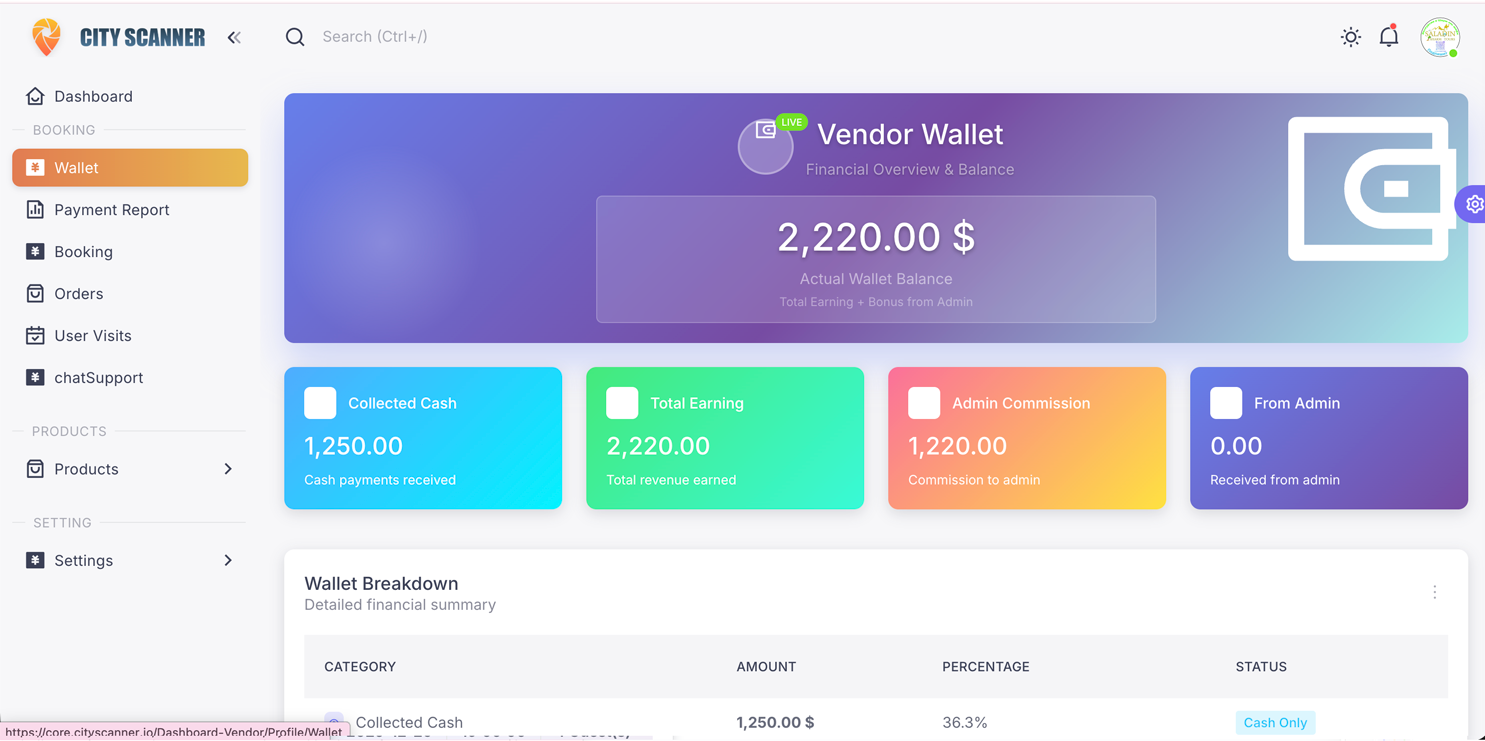
Wallet Overview
Navigation: Sidebar → Booking Section → Wallet
 1
2
3
4
1
2
3
4
- Total Earning — your share after commission. This is what you can withdraw.
- Collected Cash — cash payments you took directly from customers.
- Admin Commission — platform fee already deducted from each booking.
- Transactions table — every credit and debit; click a row for the booking details.
Wallet Breakdown
- Collected Cash (النقدية المحصلة): Cash payments from customers
- Total Earning (إجمالي الأرباح): Your share after commission
- Admin Commission (عمولة الإدارة): Platform fee deducted
- Commission from Admin (عمولة من الإدارة): Bonuses/credits from admin
Balance Calculation
Your Balance = Total Earning + Commission from AdminPayment Report
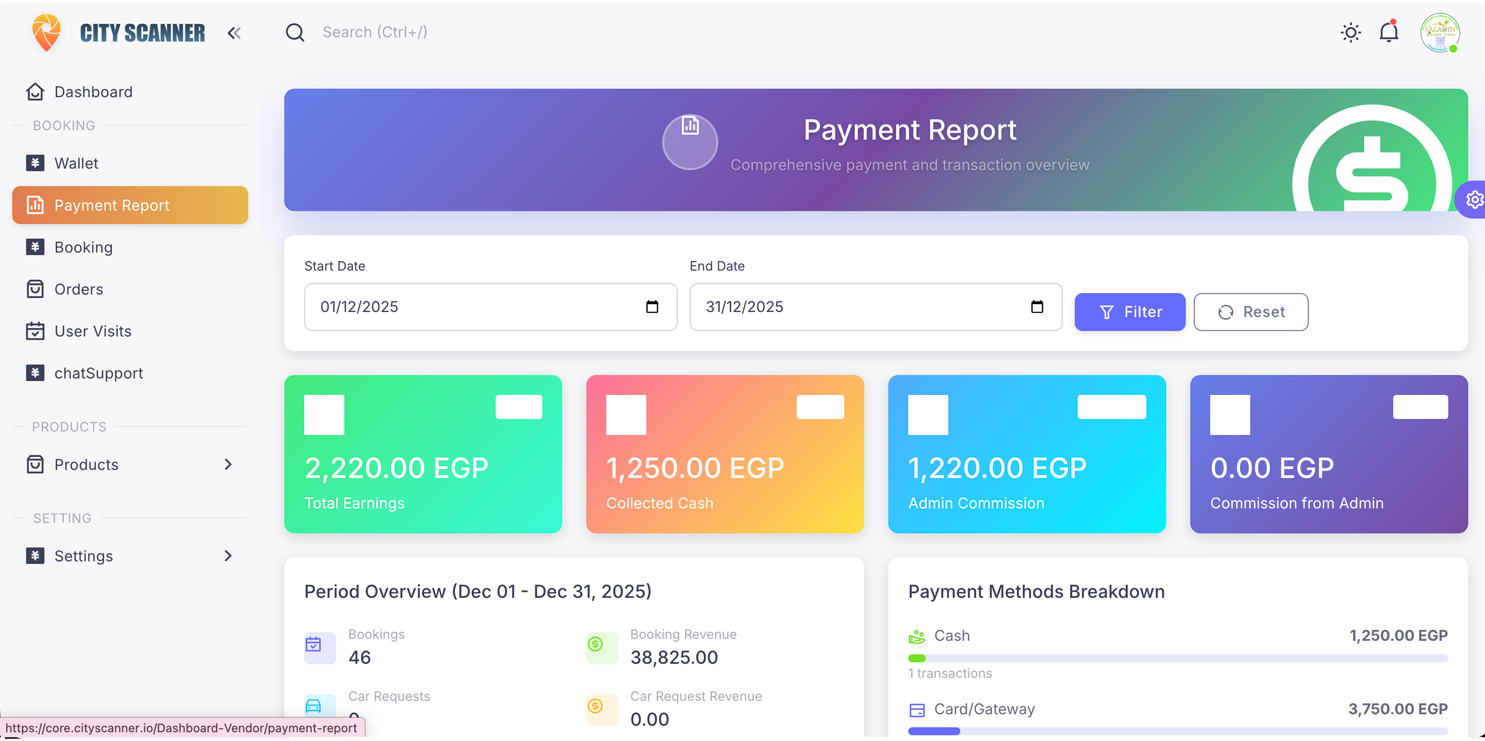
Navigation: Sidebar → Booking Section → Payment Report
 1
2
3
4
1
2
3
4
- Date range — limit results to a specific period (this week, this month, custom).
- Payment method — filter by cash, card, or wallet.
- Export — download the filtered list as Excel/CSV for accounting.
- Transaction list — each row is a financial event tied to a booking.
Detailed financial reports and transaction history with filters for date range, payment methods, and status.
"Collected Cash" is what you took from customers in person — it doesn't add to your withdrawable wallet. The number you can actually withdraw is "Total Earning". Check both before opening a support ticket.
Product/Service Management
- 📋 You see
- All your products (menu items, rooms, tours, cars — depends on your business type).
- 🛠 You can
- Add new products with photos, prices and details; toggle visibility/active; drag to reorder how they appear in the app.
- ⏰ When to come
- When adding new offerings, updating prices, or seasonal cleanup.
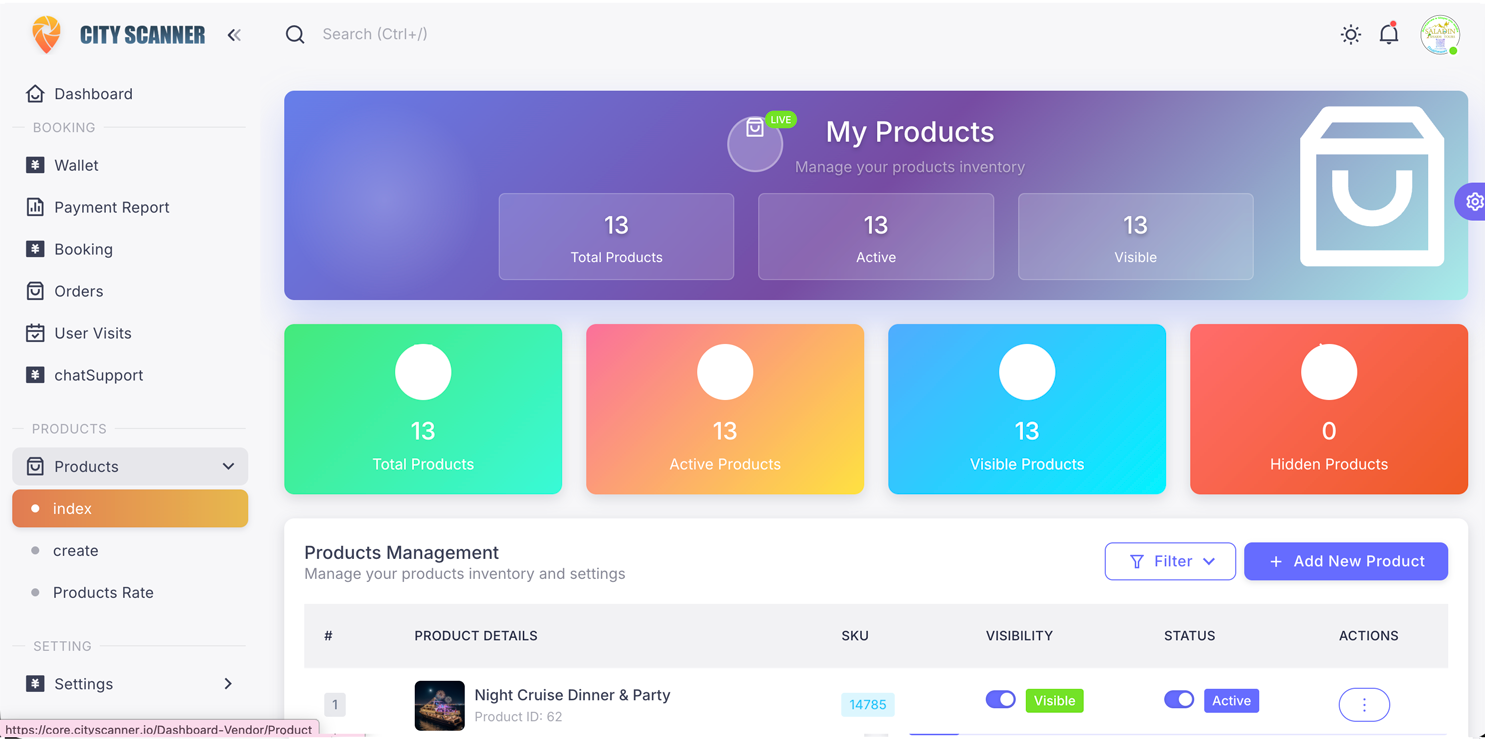
View All Products
Navigation: Sidebar → Products Section → Products → index
 1
2
3
4
5
1
2
3
4
5
- + Add New — opens the product creation form.
- Drag handle — drag rows up/down to reorder how products appear in the customer mobile app.
- Visibility — hide a product from customers without deleting it (keeps booking history).
- Status — Active means it accepts new bookings; Inactive pauses it.
- ⋮ Actions menu — Edit, Manage cars (limousine only), or Delete.
Products are called different names based on your business:
- Restaurant: Menu Items
- Hotel: Rooms
- Limousine: Cars (service categories)
- Tours: Tour Packages
- Pharmacy: Medicines
- Events: Event Packages
Create New Product
Navigation: Sidebar → Products Section → Products → create
- Basic Information: Name, description in English and Arabic
- Pricing: Set price, discounts, special offers
- Images: Upload product photos (minimum 1, recommended 4-5)
- Availability: Set stock/capacity and booking settings
- Additional Details: Varies by business type
- Click "Save" to create
Image Tips
- Use high-quality, well-lit photos
- Recommended size: 800x600 pixels minimum
- Maximum 5 images per product
- First image becomes the main thumbnail
Product Ratings
Navigation: Sidebar → Products Section → Products → Product Rate
View customer reviews and ratings for your products.
Deletion is permanent and breaks the booking history customers see in their app. To stop new bookings, toggle Visibility off instead — existing bookings keep working.
Driver Management 🚗 Limousine Only
- 📋 You see
- All drivers in your fleet — name, phone, license, status (active / on leave / suspended).
- 🛠 You can
- Add a new driver with documents, change their status, set per-kilometer pricing rules.
- ⏰ When to come
- When hiring a new driver, updating license info, or temporarily disabling a driver.
Limousine Vendors Only
This section only appears if your vendor account is set up as a Limousine/Car Rental service.
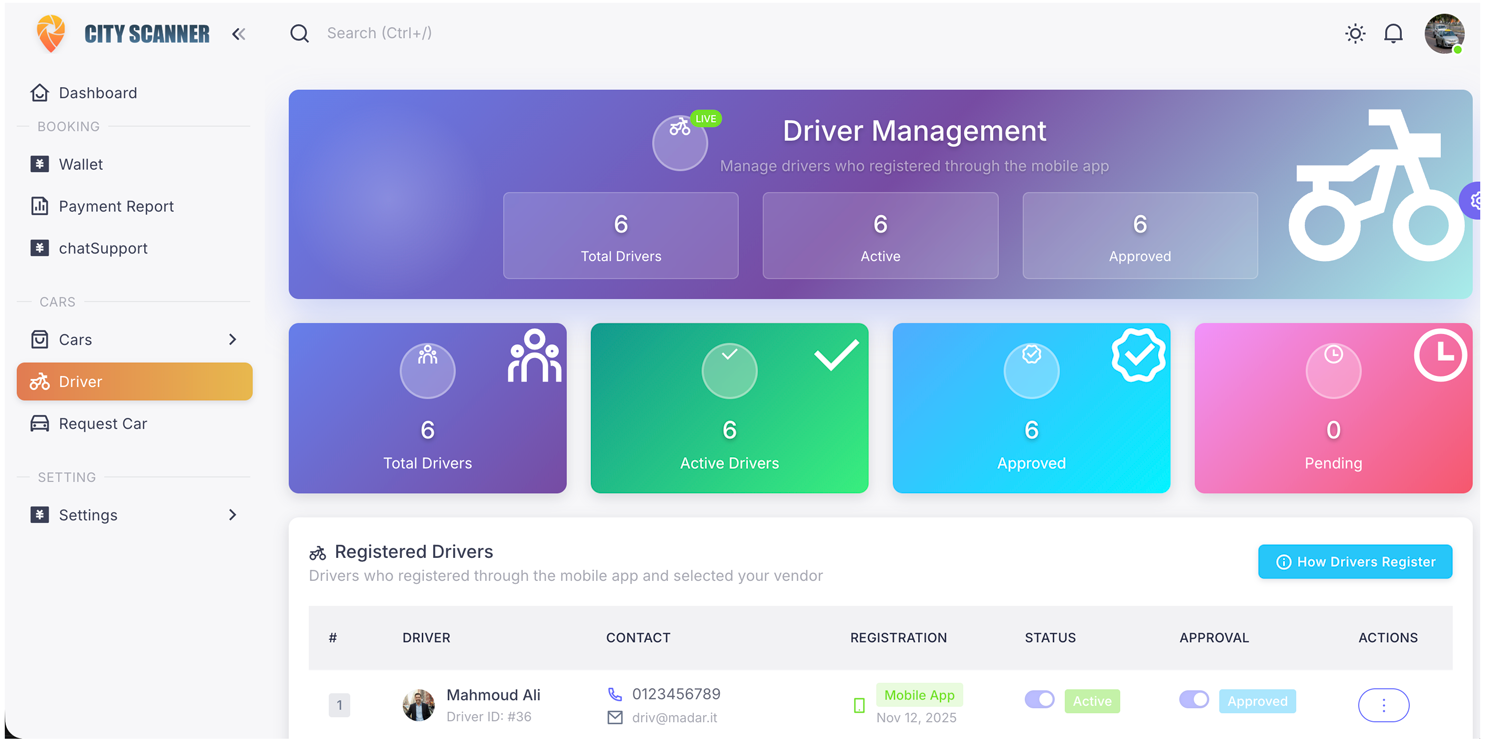
Driver List
Navigation: Sidebar → Products Section → Driver
 1
2
3
4
1
2
3
4
- + Add Driver — opens the driver registration form.
- Driver row — click to view full profile, license documents, trip history.
- Status — Active drivers receive requests; Inactive / Suspended don't.
- Actions — edit driver info, change status, or remove from fleet.
Adding New Driver
Click "Add Driver" button and fill in:
Personal Information
- Full Name (English & Arabic)
- Phone Number
- Email Address
- National ID Number
- Date of Birth (21+ years)
License & Documents
- License Number & Type
- Issue & Expiry Dates
- License Photo (both sides)
- National ID Photo
- Profile Photo
Driver Status Management
- Active: Can receive and accept car requests
- Inactive: Temporarily unavailable
- On Leave: Scheduled time off
- Suspended: Disabled by admin or vendor
Important
Drivers must have the Driver App installed with notifications enabled to receive car requests. Download Driver App
Price per Kilometer Settings
Navigation: Sidebar → Driver → Price Distance
Configure distance-based pricing for your car services:
- Base price per kilometer
- Minimum trip distance
- Minimum trip price
- Additional charges (waiting time, night shift, tolls)
If a driver has an active accepted, inWay, or arrivedLocation request, suspending them strands the customer. Wait until endJourney, or coordinate with the driver to cancel safely.
Car Request Management 🚗 Limousine Only
- 📋 You see
- Live ride requests sent by users — pickup, drop-off, distance, price, status, and assigned driver.
- 🛠 You can
- Monitor active rides, see when drivers accept and complete journeys, view payment status.
- ⏰ When to come
- Multiple times per day to track ongoing rides — your drivers handle accepting in their mobile app.
Ride statuses at a glance
This Replaces Booking/Orders
Limousine vendors use the "Request Car" system instead of traditional booking pages.
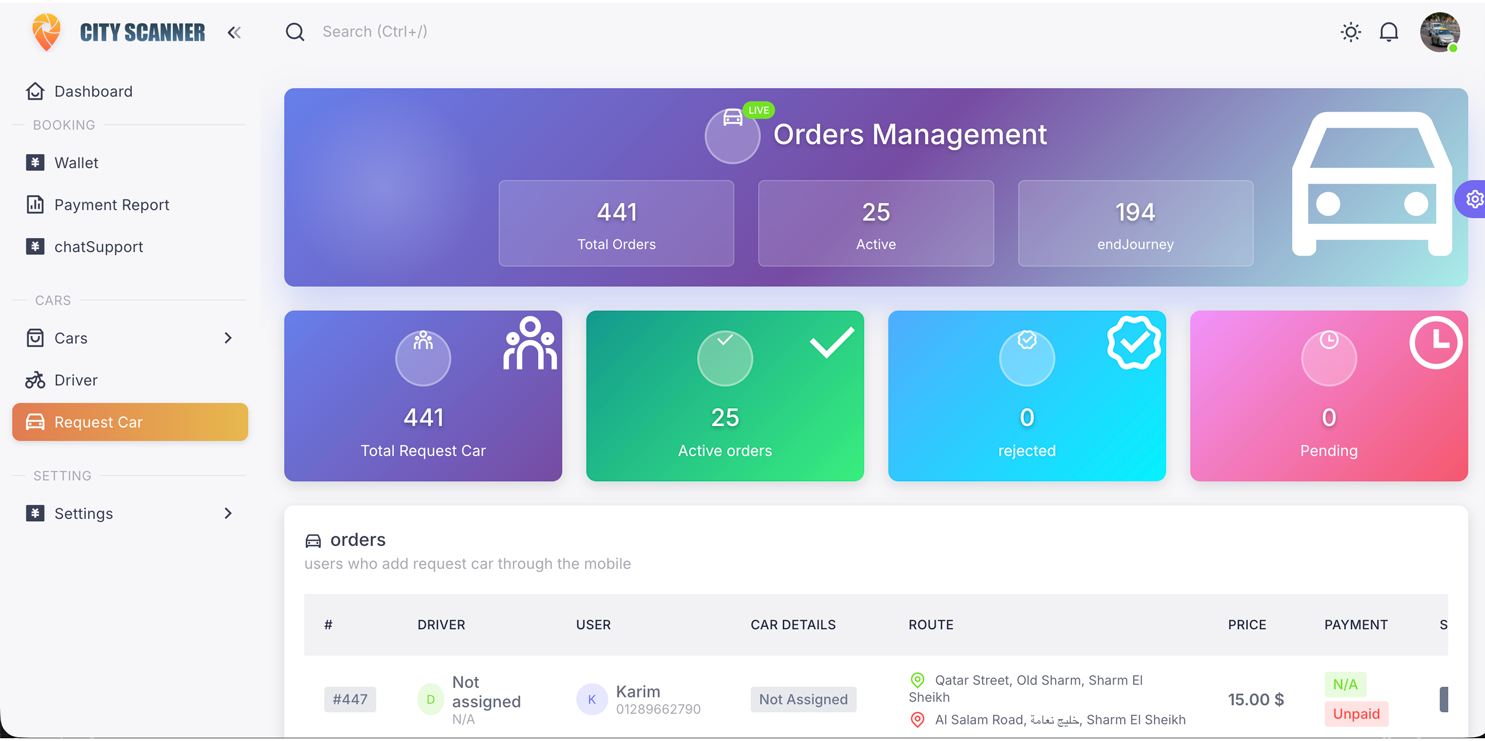
How Car Requests Work
Navigation: Sidebar → Products Section → Request Car
 1
2
3
4
5
1
2
3
4
5
- Status filter — show only pending / in-progress / completed rides.
- Pickup location — where the driver should pick up the customer.
- Drop-off location — destination address.
- Status pill — current state of the ride (matches the legend above).
- Details — click to see assigned driver, customer info, route map, and payment.
Request Flow
- Customer opens app → Requests car NOW
- System notifies all active drivers (FCM push)
- First driver to accept gets the request (within 2 minutes)
- If no acceptance → Request expires → Customer notified
- Trip starts → In Progress → Completed → Payment processed
Request Statuses
- New: Just received, waiting for driver
- Driver Accepted: Driver confirmed, waiting for pickup
- In Progress: Trip started
- Completed: Trip finished successfully
- Expired: No driver accepted within 2 minutes
- Cancelled: Customer or vendor cancelled
2-Minute Expiration
Car requests automatically expire after 2 minutes if no driver accepts. Ensure your drivers have the app installed and notifications enabled!
Car Fleet Management
Navigation: Products List → Click on Product → Manage Cars
Add specific vehicles to your service categories. Each "product" is a service type (e.g., Airport Transfer), and you add actual cars to it.
Car requests time out in 2 minutes. If a driver's phone is in battery-saver mode, has the Driver App stopped by Android, or has notifications disabled, they miss the request and your fleet loses revenue. Tell drivers to whitelist the app from battery optimization.
Settings & Profile
- 📋 You see
- Your business profile — name, contact info, hours, location pin, photos, and password.
- 🛠 You can
- Update business details, change password, upload logo and cover photo, set business hours.
- ⏰ When to come
- Initial setup, then occasionally — when changing phone, address, or refreshing photos.
Vendor Profile
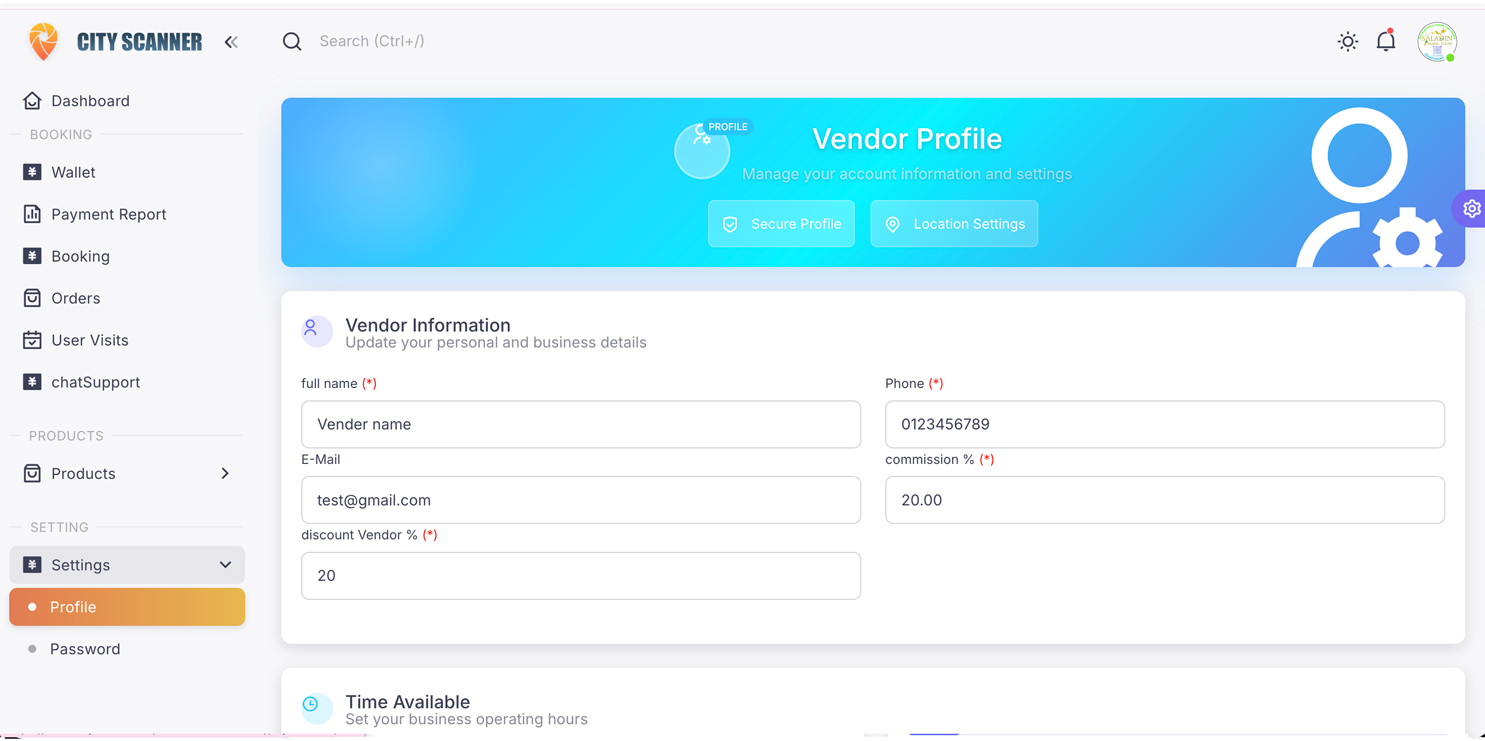
Navigation: Sidebar → Setting Section → Settings → Profile
 1
2
3
4
5
1
2
3
4
5
- Logo / cover photo — what customers see in the mobile app. Use high-quality images.
- Business name — appears in search results. Keep it consistent across both languages.
- Contact info — phone and email customers can reach you on.
- Location pin — drag to your exact location; used for distance calculations.
- Save — changes don't apply until you click this.
Update your business information:
- Business Details: Name, description, type
- Contact Info: Email, phone, address
- Business Hours: Opening/closing times, days off
- Location: Set map pin for customer navigation
- Legal Info: Commercial registration, tax card
- Social Media: Facebook, Instagram, website
- Photos: Logo, cover photo, business photos
Change Password
Navigation: Sidebar → Setting Section → Settings → Password
- Enter your current password
- Enter new password (minimum 8 characters)
- Confirm new password
- Click "Update Password"
Password Tips
- Use at least 8 characters with mixed case, numbers, and symbols
- Change password every 3-6 months
- Don't share password with anyone
- Use unique password (not used elsewhere)
If you lose access to the email tied to your vendor account, password reset won't work and you'll be locked out. Update your email only after confirming you can receive mail at the new address, and keep the old one active for 7 days as a backup.
Support & Communication
- 📋 You see
- Open conversations with the admin team and direct chats with customers about specific bookings.
- 🛠 You can
- Send messages, share photos/files, and resolve customer questions without leaving the dashboard.
- ⏰ When to come
- When you get a chat notification, or when you need help from admin support.
Chat Support
Navigation: Sidebar → Booking Section → chatSupport
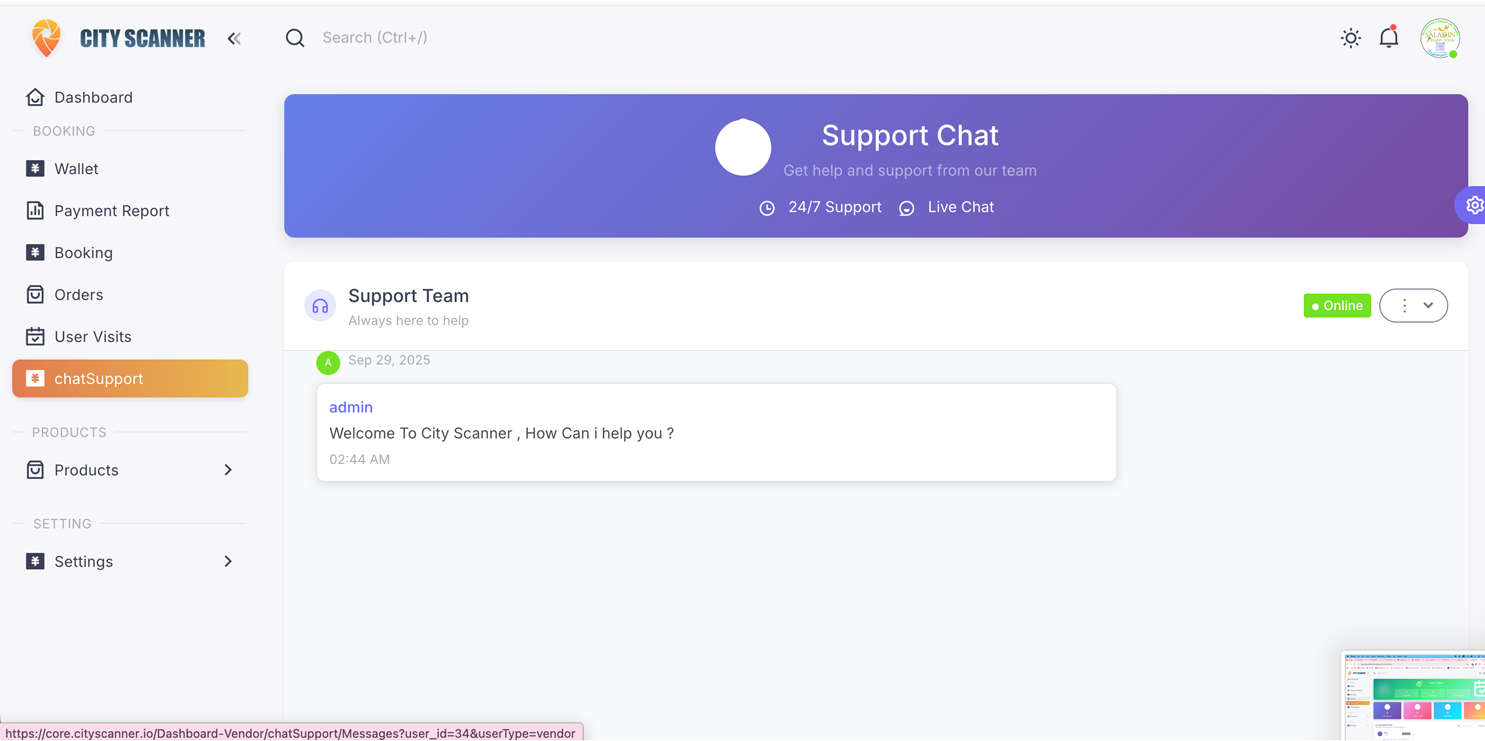
Chat Support Interface - Click to enlarge
Use Chat Support for:
- Technical issues with dashboard
- Payment and wallet queries
- Account problems
- Booking disputes
- General questions
- Feature requests
- Bug reports
Notifications
Location: Top-right header → Bell Icon 🔔
You'll receive notifications for:
- New bookings and cancellations
- Payment received
- Car requests (Limousine)
- System updates
- Admin messages
Troubleshooting
Cannot Login?
- Check email/username spelling
- Ensure Caps Lock is off
- Use Forgot Password to reset your password
Bookings Not Showing?
- Refresh the page (F5 or Ctrl+R)
- Check that your products are Active
- Verify your vendor account is Active
- Limousine: Check "Request Car" page instead
Cannot Upload Images?
- File size must be under 5MB
- Use JPG, PNG, or JPEG format
- Try resizing to smaller dimensions
- Clear browser cache and try again
Driver Not Receiving Requests? (Limousine)
- Check driver status is "Active"
- Verify driver has assigned car
- Ensure car status is "Available"
- Confirm driver has mobile app installed
- Check notifications are enabled on driver's phone
- Verify internet connection
Wallet Amount Seems Wrong?
- Go to Payment Report
- Check all completed bookings
- Compare with your records
- Contact admin with specific order numbers if discrepancy found
Still Need Help?
Use the Chat Support feature in your dashboard or contact admin directly. Response time is typically within 24 hours during business days (9 AM - 6 PM Cairo Time).
Best Practices for Success
Product Management
- Use high-quality photos
- Write detailed descriptions
- Update availability regularly
- Set competitive pricing
Booking Management
- Respond quickly (within 30 mins)
- Communicate clearly with customers
- Don't overbook
- Be professional
Customer Service
- Read customer requests carefully
- Be punctual
- Handle complaints professionally
- Encourage reviews
Financial Management
- Check wallet daily
- Review payment reports weekly
- Understand your commissions
- Keep financial records